Quick Link: To buy a license key for Kigo Video Converter Pro, visit our online store.
Why should I buy Kigo Video Converter Pro?
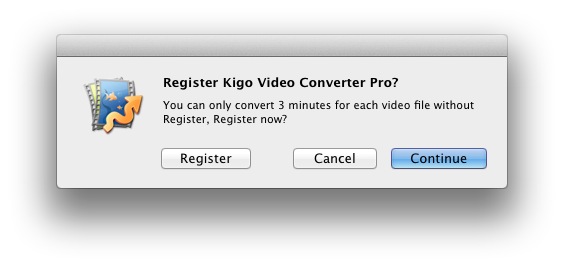
Put simply, Kigo Video Converter Pro is a shareware. The trial version has the limitations.
1. In trial version, you can only convert 3 minutes for each file at most.
2. In trial version, when you convert the merged video, each sub video will only be converted 3 minutes at most.
3. In trial version, when you burn DVD, each sub video will only be converted 3 minutes at most.
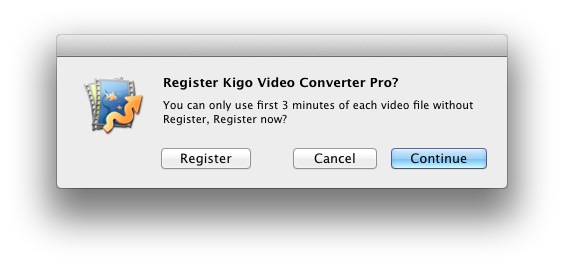
After you purchase our product, we will provide you with Registration Name and Registration Code that will unlock the trial version limitation.
What Benefits do we have after Registration
- Unlimited use with any time and function.
- FREE upgrades when the updated versions of the same product released.
Registration steps
Step 1: Run Kigo Video Converter Pro, then click the Kigo Video Converter Pro menu, and select the Registration... option.
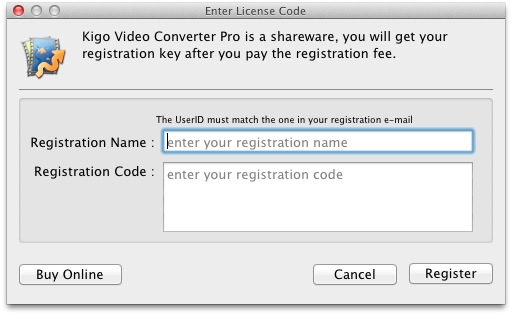
Step 2: After the registration box popped up, please fill the input blanks with Registration Name and Registration Code. You can also use Command + C to copy and Command + V to paste in the window.
Notice:
1. Make sure that the Registration Name and Registration Code both are provided by our company after you pay the
registration fee. If you have not paid, please click Buy online to purchase.
2. Make sure the Registration Name and Registration Code you enter are both complete and correct, if not, you will
get an error message.
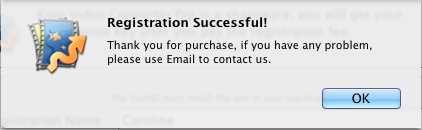
Step 3: After you finish registration successfully, the limitation of Kigo Video Converter Pro's trial version will be removed.